PHJOY Deposit Not Working: Check Your Wallet Record, Then Pick the Fix
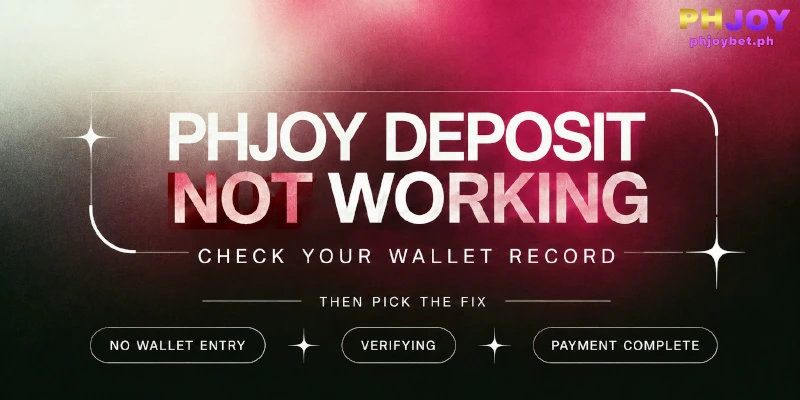
PHJOY deposit not working comes down to three results: the money never left your wallet, your wallet is still verifying the payment, or the money left and PHJOY has not credited your balance. The record in your own e-wallet or bank shows which result you have, and each gets a separate fix below. Once money has left, Deposit History, the deposit record on the Deposit page, shows only three days.
What Does Your Wallet Record Show About a Failed PHJOY Deposit?
Your wallet record shows one of three results, sorted by whether the money left your wallet. When a deposit is not working at PHJOY, open the transaction history in your e-wallet or bank app, find the payment you tried to make, and match that entry to a row in this table.
| What your wallet record shows | What this means | Where to go next |
|---|---|---|
| No entry, and the app showed a failure or never opened the payment | The money never left your wallet, so the problem sits before PHJOY | The five causes in the next section |
| No entry yet, and GCash showed “Payment confirmation in progress” | Your wallet is still verifying the payment | Step 3 of the Deposit History steps |
| An entry marked complete (GCash lists scanned QR payments as “Pay via Scanned QR”) | Your wallet deducted the money, but PHJOY has not credited the payment | The GCashQR rule, then the Deposit History steps |
Other wallets and banks word these entries differently, but each still falls into one of the three rows. Row two is a PHJOY deposit pending on the wallet side: your wallet has not finished verifying the payment, and GCash gives that state a separate waiting window, covered in step 3 below.
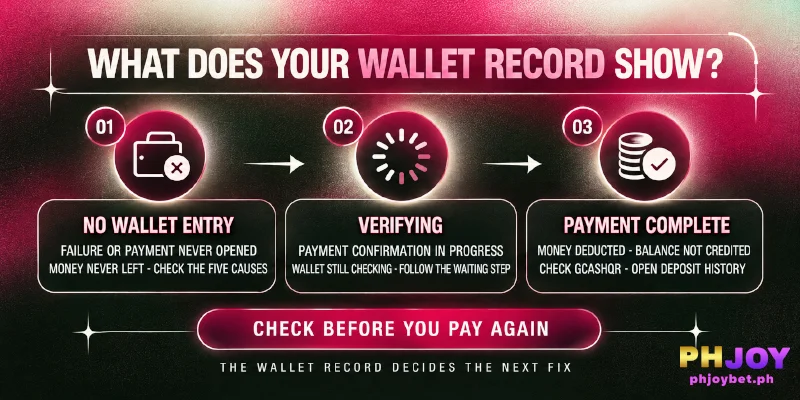
Check before you pay again. GCash’s help center warns that retrying a QR payment first can charge you twice, so the record decides whether a second attempt risks a double charge. If your PHJOY balance did rise and only a bonus or cashback is missing, the deposit itself worked, and the reward follows separate terms.
From the PHJOY side, all three rows look the same, because the balance has not moved. Only your wallet record tells them apart.
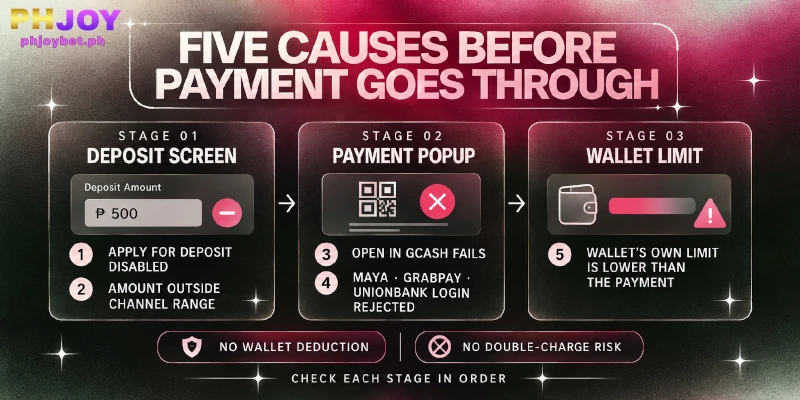
PHJOY Deposit Not Working Before the Payment Goes Through: Five Causes
If a PHJOY deposit is not working and your wallet record shows no deduction, no money has moved, so a second attempt carries no double-charge risk. The five causes follow the order a payment meets them: two on the PHJOY deposit screen, two at the payment popup (GCash, Maya, GrabPay, or UnionBank), and one inside your wallet.
Apply for Deposit Is Disabled
Apply for Deposit stays disabled when First Deposit Bonus is ticked and no withdrawal e-wallet is bound to your account. Bind a GCash or PayMaya wallet in your name under Link E-wallet in My Account (the deposit screen offers Set Up for this). Or set Choose Promotion to Do Not Participate In Any Promotions and deposit without the bonus.
Skipping the bonus now does not cost you the offer. The First Deposit Bonus can be saved for a later deposit, since the counter reads 0/1 until the bonus is used.
The Amount Is Outside the Channel’s Range
Each channel, the specific payment route you pick under a method, carries a separate range. Minimums run from ₱50 on Maya to ₱1,000 on GrabPay and Online Banking, and every method except GrabPay, which stops at ₱5,000, goes up to ₱50,000.
A ₱8,000 deposit, for example, works through GCash but exceeds GrabPay’s ₱5,000 cap. A ₱200 deposit works through Maya but falls below GCASHPAY2’s ₱300 minimum. Use the amount buttons, which stay inside each channel’s range, or type an amount that fits the range, and switch channel when yours does not.
Open in GCash Does Not Launch the App
On the GCash channels (Ch.20, Ch.26, and Ch.14), the popup shows a QR code with an Open in GCash button. If the button does not launch the app, scan the QR code from a second phone, since this code accepts a scan from any account.
Fully closing and reopening the app is among the first steps GCash’s help center lists when a QR will not scan. GCashQR has no Open in GCash button; the Next button can open the GCash app instead. If Next fails too, the popup says Maya, ShopeePay, or any bank app can scan the code.
Your Maya, GrabPay, or UnionBank Login Is Rejected
These three channels confirm the payment inside your own account. Maya asks for your mobile number and password, GrabPay asks you to log in to your Grab account, and Online Banking sends you to the UnionBank login page for your User ID and password.
Maya, Grab, or UnionBank has to accept your login before the payment can continue. Those credentials belong to Maya, Grab, and UnionBank, so a reset happens in their apps, not in your PHJOY account.
Your Wallet’s Own Limit Is Lower Than the Payment
Suspect the wallet’s own limit when the PHJOY screen accepted your amount but the wallet app refuses the payment. GCash caps how much a wallet can hold and how much can be sent out, and a PHJOY deposit paid from the wallet counts toward the outgoing limit.
A Basic account (the entry level) carries a ₱10,000 wallet cap and ₱5,000 of monthly outgoing. A Fully Verified account (the higher level) carries ₱100,000 for the wallet and for daily outgoing.
Take a Basic account that has already sent ₱4,000 before the monthly reset. That account has ₱1,000 of room left, so a ₱3,000 deposit would go past the limit. GCash says certain services stay closed until the limit resets on the first day of the next month, or until you upgrade your profile.
Maya’s Basic level allows ₱50,000 of purchases per day, which equals PHJOY’s ceiling per deposit, so two ₱30,000 deposits on the same day would pass that limit. Maya notes that the limits are subject to change, so the Account Limits screen in the app holds the current figures.
Either a wallet limit or a rejected login can be why your PHJOY deposit is not working, and GCASHPAY2 offers a way around both with a QR Ph code, the Philippine QR standard, that any e-wallet or banking app can scan. Pay from another wallet or bank app with room (₱300 to ₱50,000); that app’s own limits still apply.
The Last Six Digits Are Needed When a GCashQR Paying Number Differs
If a GCashQR payment has left your wallet and the PHJOY deposit is not working, you may need the last six digits of the transaction number: your GCash phone number must match the paying number, and if the numbers differ, you add those six digits after paying. The note covers the GCashQR channels QR.19, QR.9, and QR.14.
The five causes above stop a payment before it leaves the wallet, so this note covers the stage after. Each channel shows a QR code with an Order No, the reference worth keeping, and an Amount Due.
Because the popup lets other apps scan, the paying number can differ from your GCash number, for instance when a relative scans the code from their phone or you pay from a Maya app.
For example, you apply for ₱500 on QR.19 and your brother scans the code from his phone. The paying number is his, so after paying you enter the final six digits from his payment confirmation, as the note instructs.
This note applies to GCashQR only, so do not assume the other QR channels share the note. If the balance still has not moved afterwards, the steps in the next section apply.
PHJOY Deposit Not Received: Match Deposit History Within Three Days
When a PHJOY deposit is not working even though your wallet shows the payment as complete or still verifying, compare Deposit History with your wallet record. Deposit History sits on the Deposit page and covers up to three days. Take the steps in order: a refresh costs nothing, and later steps need the details earlier ones collect.
- Refresh your balance. Tap the refresh icon beside your balance in the header, then look again.
- Open Deposit History on the Deposit page and look for an entry that matches the amount and the time of your payment. Write down what the entry shows, since you will quote the details to Live Support, the support chat in the sidebar, if the balance stays put.
- If your wallet still shows “Payment confirmation in progress,” keep a screenshot and wait. GCash says the payment may not appear in your transactions yet, and tells users to watch their transaction history or SMS for an adjustment entry, the correction that settles the payment, allowing 24 to 72 hours. If a GCash balance payment shows no adjustment after 72 hours, contact GCash support. Maya and bank apps set their own waiting times, so ask their support if the entry stays unresolved.
- If the wallet record is complete but Deposit History has no matching entry, or the balance is unchanged after the refresh, open Live Support in the sidebar. Enter your Username, choose DEPOSIT AND WITHDRAWAL as the department, and describe the concern in the message box.
Put these six details in your Live Support message:
- The amount you applied for
- The amount your wallet shows
- The channel label exactly as shown on the deposit screen (for example G-Cash QR.19)
- The time of payment
- The Order No, if your popup showed one
- The transaction number from your wallet record
GCash allows 24 to 72 hours for an adjustment, and 72 hours is the whole three days Deposit History covers, so a long wait on the wallet side can use up your checking period. Capture the wallet record and Deposit History on the first day, and contact Live Support while Deposit History can still show the deposit.
FAQ
Three questions stay open after the record check, ordered from the one that affects your PHJOY balance to the one that affects your account’s safety.
Does PHJOY Take a Fee From a Deposit?
No fee line appears on the deposit screens, and Actual Payment Amount in Payment Details equals the amount you chose. If your wallet record shows a different figure, quote both amounts in your Live Support message, since a gap between them is the first thing to trace.
When Can I Reach Live Support About a Missing Deposit?
Any time: Live Support runs 24 hours a day, every day, in English. The [email protected] mailbox takes the same details if you prefer email.
Does Tracing a Deposit Ever Need My Wallet PIN or One-Time Password?
No, the Live Support flow asks only for your username, a department, and a description of the concern. Never send a wallet PIN or a one-time password to anyone who contacts you about a deposit, because those codes authorize wallet payments. Reach Live Support only through phjoybet.ph or the official PHJOY app, because fake sites copy the PHJOY name.
Check the Wallet Record First, Then Use the Three-Day Window
Whenever a PHJOY deposit is not working, the first question is whether your money left your wallet, and only the wallet record answers it. A payment that never left is yours to fix and retry; a payment that left runs against Deposit History’s three days, and Live Support can trace only the record you kept.