
PHJOY App Download and the Two Promotions That Need the App
The PHJOY app installs through APP Download, a sidebar entry on phjoybet.ph that shows one QR code for iOS and one for Android. Two promotions name the app in their terms, and one is written for newly registered members who have not deposited, so the order of register, install and first deposit decides whether that offer is still open.
Where the PHJOY App Download QR Code Sits and What It Opens
In the sidebar list, APP Download comes after Game center and before Live Support. The reason PHJOY gives for the install is short: the app keeps your account safer, avoids fake sites, and gives full access to bonuses and promotions.
Three steps take you through the route, and the only decision in it is which code to scan:
- Open the sidebar and select APP Download. The screen shows a QR code for each platform.
- Scan the code that matches the phone you will play on. The iOS code is for an iPhone and the Android code is for an Android phone.
- Let the download page open, then download and install from the page. That page opening after the scan is your sign the code worked.
The code opens the download page of the site you scanned from, so you know where the installer comes from before any file reaches your phone.
An APK Install Takes One Permission on Android, and iOS Uses the Same Page
PHJOY’s Android app comes from a website, not from a store, so it reaches your phone as a PHJOY APK, the installer format Android apps ship in. Installing it takes one permission: since Android 8 you allow outside-store installs for a single app, the one that downloaded the file, usually your browser or a file manager.
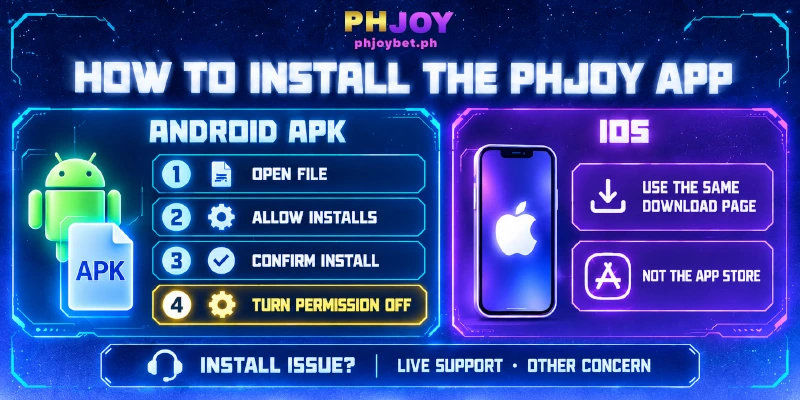
Until you grant that permission, Android blocks the install. The install runs in four steps, and step 2 appears only when Android has not yet allowed installs from your browser or file manager:
- Open the downloaded PHJOY APK, or tap Open when the browser offers the file.
- If Android shows an install-blocked message, follow its Settings button, pick the browser or file manager you used, and switch on the option that allows installs from that source. Phone makers rename the option, so look for a label such as Install unknown apps.
- Go back and confirm the install when Android asks.
- Switch the permission off again for that browser or file manager. The permission stays on until you turn it off, and the block you lifted is the one that protects you from unwanted installs.
On iPhone the route matches up to the download page: scan the iOS code and the page serves the iOS app. The iOS version of PHJOY’s app installs from the website, not from the App Store, so an empty App Store search says nothing about whether your install is working.
When an install of the PHJOY app stops on either platform, Live Support in the sidebar answers around the clock. Enter your username and choose Other Concern, since none of the other four departments covers installs.
Register & Download Is Written for Newly Registered Members With No Deposit
Installing is also one half of Register & Download, the new-member offer tied to PHJOY’s app. The terms address an account that has registered and not yet deposited, and PHJOY credits the reward within 2 hours. An account that sees no reward inside that window is not eligible.
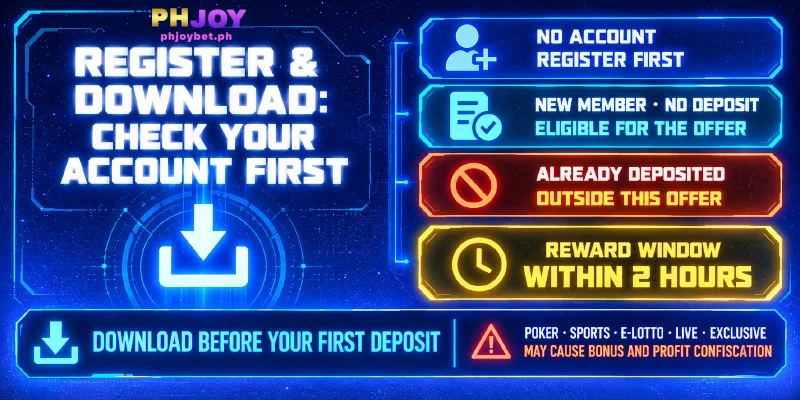
Your starting point decides what that wording means for you:
- No account yet: register first, then download the PHJOY app, because the offer needs both steps.
- Newly registered, no deposit: you match the account the terms describe, so download PHJOY’s app now and watch for the reward inside the 2 hours.
- Already deposited: a first deposit made earlier falls outside the no-deposit description. Free Angpao Everyday, a red-packet reward promotion, follows separate terms and does not depend on this offer.
Limits come with the reward: a turnover requirement, the total you must bet before a reward counts as withdrawable, game restrictions and a withdrawal cap for accounts with no deposit. Betting on poker, sports, e-lotto, live or exclusive games makes PHJOY confiscate the bonus and the profits, so read the offer’s terms before you play with the reward.
Because the terms describe members with no deposit and set a 2-hour window, register and download PHJOY’s app before your first deposit, then watch for the reward before you deposit. A deposit made first is the one step you cannot take back.
Two of Five App Benefits Name the App in Their Terms
Register & Download and Free Angpao Everyday are the two promotions whose terms name PHJOY’s app. The support widget lists five benefits under PHJOY’s app, so the table sorts each one by whether its terms start with the app.
| Benefit | Terms name the app? | What starts it |
|---|---|---|
| Register & Download | Yes | Register, then download PHJOY’s app |
| Free Angpao Everyday (widget: Daily Angpao) | Yes | A login through the official app in each hourly round |
| Daily Cashbacks | No | Claimed at Rebate or Reward Center |
| VIP Weekly Salary | No | A weekly deposit and a Sunday login |
| Gifts Every Wednesday | No | A Wednesday login and share, claimed at Reward Center |
| Every 8th Monthly Rewards | No | A login and share on the 8th, claimed at Reward Center |
Free Angpao Everyday needs the app on every claim, not only at install: it pays out hourly, 24 rounds a day, one claim per round, first come, first served, with a login through the official app each round. Each round is a separate claim, so a claim in one round does not carry into the next.
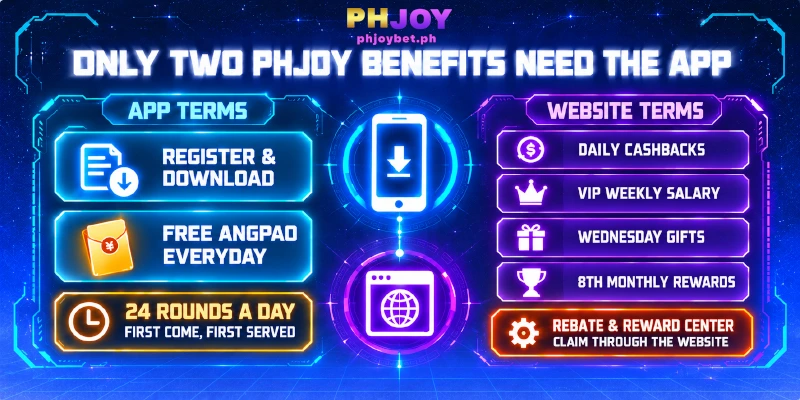
Rebate and Reward Center are sidebar entries on the website too, so the four No rows do not start with the app.
Five benefits sit under the PHJOY app, yet only two sets of terms require the app, so install the app for Register & Download and Free Angpao Everyday, and claim the other four at Rebate or Reward Center under their own terms.
FAQ
Each step above assumes the code scans, Android lets the install through, the reward arrives and the file comes from the download page. The answers below cover one of those assumptions failing.
Can I Scan the APP Download Code on the Phone I Install On?
Not directly: a phone cannot scan a code shown on its own screen. Open the sidebar on a computer or second device and scan from there, or load a screenshot into a scanner that reads saved images, such as Google Lens. Pick the code for the phone that will run the PHJOY app.
Why Does My Phone Show a Play Protect Prompt During the Android Install?
Play Protect is Google’s built-in scanner, and the scanner keeps checking apps installed from outside Google Play, so a prompt can appear during or after the install of PHJOY’s app. Read which app the prompt names.
Ask Live Support before you continue when the prompt names the file you just downloaded from the page APP Download opened. When the prompt names anything else, stop and go back to APP Download.
Who Do I Contact if the Register & Download Reward Does Not Arrive?
Live Support in the sidebar. Enter your username, choose Promotions and Bonuses, and describe what happened. Include the time you registered and the time you downloaded PHJOY’s app, because the terms set a 2-hour window and Live Support can only check that window against your times.
Can I Install a PHJOY App File Someone Else Sends Me?
No: install only what comes from the download page that the APP Download QR code opens. Fake sites are the risk the app download is meant to avoid, and a file passed on by someone else gives you no way to confirm where the file came from.
If you already installed one and entered your username and password, remove the app, install again from APP Download, and tell Live Support.
Download Through the Sidebar, Then Match the Offer to Your Account
A PHJOY app install starts at APP Download, which fixes where the file comes from on Android and iOS alike. Your account then decides whether Register & Download is still open, while the other benefits run on their own terms. To reinstall PHJOY’s app, return to the same entry, not an old file.