
Make a PHJOY Deposit: Seven Steps and the Bonus Tick That Needs a Linked E-Wallet
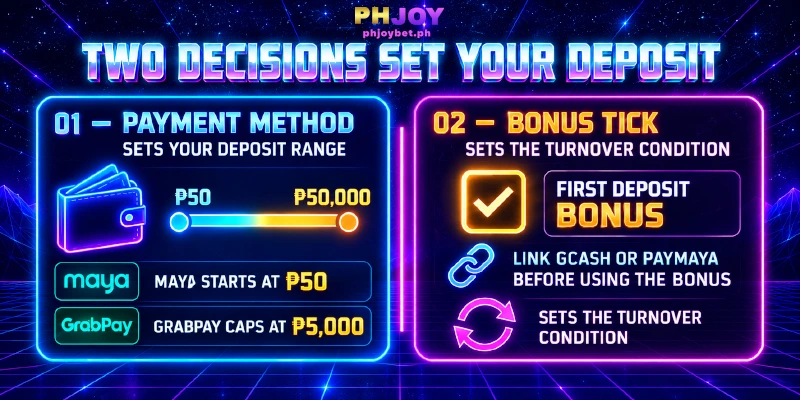
To make a PHJOY deposit, you follow seven fixed steps and make two decisions that shape the rest: the payment method and whether to tick the First Deposit Bonus. Six methods run from ₱50 on Maya to ₱50,000 per deposit at PHJOY, with GrabPay capped at ₱5,000. The bonus tick has one catch: without a linked GCash or PayMaya wallet, Apply for Deposit stays disabled.
Per-Deposit Range by Method, From ₱50 on Maya to ₱50,000
The minimum PHJOY deposit is ₱50, on Maya; the floor rises to ₱1,000 on GrabPay and Online Banking, and five of the six methods share a ₱50,000 ceiling. Each method lists channels, which are separate payment routes under that method. The table sorts the methods from the lowest floor up.

| Method | Channels listed | Range per deposit | Suits you when |
|---|---|---|---|
| Maya | PayMaya Ch.32, Ch.17 | ₱50 to ₱50,000 | You start small, or want the Cashback 2% tag both Maya channels carry. The channel list labels the method PayMaya. |
| GCash | G-Cash Ch.20, Ch.26, Ch.14 | ₱100 to ₱50,000 | You pay from the phone that holds your GCash app and want the Open in GCash shortcut. |
| GCashQR | G-Cash QR.19, QR.9, QR.14 | ₱100 to ₱50,000 | You want an Order No and an Amount Due to check before you tap Next. |
| GCASHPAY2 | Gcash-MB QR.32, QR.17 | ₱300 to ₱50,000 | You are comfortable scanning and paying by hand, and your amount is ₱300 or more. |
| GrabPay | GrabPay Ch.25 | ₱1,000 to ₱5,000 | Your amount fits that narrow range and you hold a Grab account. Withdrawals still go to GCash or PayMaya. |
| Online Banking (UnionBank) | Bank Ch.25 | ₱1,000 to ₱50,000 | You hold a UnionBank account, or you want the ₱12,000, ₱15,000 or ₱18,000 amount buttons. Withdrawals still go to GCash or PayMaya. |
Try ₱50 and ₱8,000: ₱50 works only on Maya, while ₱8,000 works on every method except GrabPay, whose ceiling is ₱5,000.
So choose the method from the amount first. An amount from ₱50 to ₱99 means Maya, anything from ₱1,000 to ₱5,000 leaves all six open, and anything above ₱5,000 removes GrabPay.
Then read the last column: you withdraw only to a linked GCash or PayMaya e-wallet (a phone-based money account that holds your balance), so a GrabPay or UnionBank deposit at PHJOY suits you only when you also hold one of those two.
Get Your Account, Wallet Login, Linked E-Wallet, and Amount Ready
With a method chosen, a deposit at PHJOY needs four things in place before the payment popup opens: your account, a wallet login, a linked e-wallet and an amount; only the linked e-wallet depends on the bonus.
- A logged-in account, held by someone 18 or older. PHJOY‘s own advice is to use only phjoybet.ph or the official app, because fake sites exist.
- A login for your own wallet or bank. Maya asks for your mobile number and password, GrabPay for your Grab account, and UnionBank for your User ID and Password, while the other three methods show a QR code instead. If you cannot sign in to that account when you deposit, pick a QR method.
- A linked e-wallet, only if you want the First Deposit Bonus. Without one, ticking the bonus in step 5 leaves Apply for Deposit disabled, and the link is made through Bind Withdrawal Account.
- An amount that fits your budget and your wallet’s own limits. The PHJOY form enforces only the range of your method; the budget is yours to set before you open the form. Wallets add a second ceiling by account level: GCash’s help center lists ₱5,000 a month of spending and sending for a Basic wallet against ₱100,000 a day for a Fully Verified one, and Maya also sets limits by account level, so your wallet can stop a payment that sits well inside the range above.
A PHJOY Deposit Takes Seven Steps Before the Payment Popup
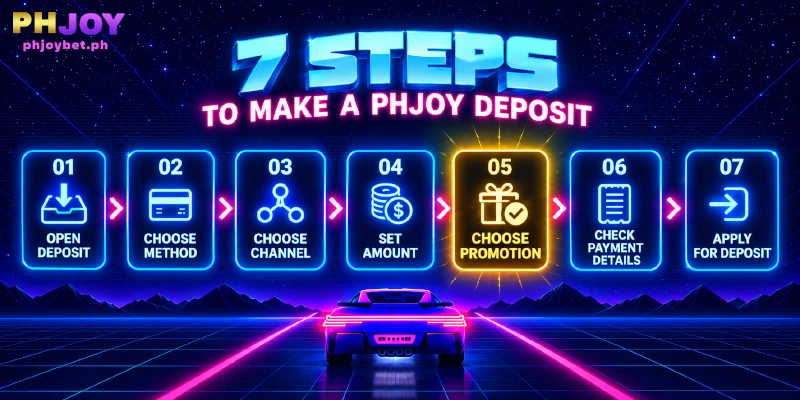
Here is how to deposit on PHJOY: seven steps, from opening the deposit page to pressing Apply for Deposit, the same for every method. Steps 2 and 5 hold the two decisions that change what follows, and each step ends with a Sign, the screen change that shows the step worked.
- Open the deposit page. Click Deposit in the sidebar, use the deposit icon in the logged-in header, or open Deposit inside Personal Center. Sign: the page lists the payment methods.
- Choose a method. Select one of the six payment methods from the table above. Sign: the channels for that method appear.
- Choose a channel. Pick one of the channels listed under your method. Sign: the amount buttons appear.
- Set the amount of your deposit at PHJOY. Tap a button or type a figure inside your method’s range. The buttons stop at ₱20,000, so a deposit above ₱20,000 has to be typed. Sign: your figure shows in the amount field.
- Decide on the bonus in Choose Promotion. The default, Do Not Participate In Any Promotions, deposits your money with no bonus. To use the one-time First Deposit Bonus, tick First Deposit Bonus (0/1); the counter shows the bonus is still unused, and leaving the box unticked saves the bonus for later. The tick attaches a turnover requirement, the total you must bet before bonus money can be withdrawn, and it brings one condition: the linked e-wallet from the checklist above. If none is linked, press Set Up first, otherwise Apply for Deposit stays disabled. The bonus amount and the turnover figure sit in the First Deposit Bonus terms; this step covers only the tick. Sign: the tick holds and Apply for Deposit becomes usable.
- Check Payment Details before you commit the deposit. The screen lists the method, the channel and the Actual Payment Amount, which is the figure you pay in the popup. Sign: all three match your choices in steps 2 to 4.
- Press Apply for Deposit. Sign: the payment popup for your deposit at PHJOY opens, and the next section covers each of the six.
Do these in a fixed order for any deposit at PHJOY: link the e-wallet through Set Up first, decide on the tick second, and press Apply for Deposit last. If you do not want a turnover requirement on this PHJOY deposit, keep the default, and the First Deposit Bonus stays saved for later.
Know the Six Payment Popups: Scan, Log In, or Sign In Through the Bank
Every PHJOY deposit ends in one of three popup types, and each type asks something different of you: a QR code you scan (GCash, GCashQR, GCASHPAY2), a login to your own account (Maya, GrabPay), or a bank sign-in (Online Banking).
Maya: Log In With Your Own Mobile Number and Password
Confirm a Maya deposit at PHJOY by logging in with the mobile number and password of your own Maya account. Both Maya channels carry the Cashback 2% tag, and a deposit through Maya earns that cashback. Enter the password only on the Maya login the popup shows, never in a message from anyone offering help.
GCash: Scan the QR or Tap Open in GCash
Once Apply for Deposit opens this popup, you have two routes into GCash: the Open in GCash button, which no other popup carries, and the QR code. Tap the button on the phone that holds your app, or scan the code with GCash; both end in a payment confirmed inside GCash.
Pick the route that matches the device in your hand: the button for a deposit started on a phone, the code for one started on a computer, which is also the split GCash’s help center describes for online payments.
GCashQR: Check Order No and Amount Due, Then Tap Next
A GCashQR deposit at PHJOY shows a QR code, an Order No, an Amount Due and a Next button. Match Amount Due to the figure you chose, and keep the Order No in view until the payment is done, because the number identifies this deposit.
This popup has no Open in GCash button, so the QR code is your way in.
GCASHPAY2: Scan a QR Ph Code by Hand
Paying with GCASHPAY2 means a QR Ph code (the national Philippine QR standard) and nothing else. You scan the code and pay manually, with no button to open an app for you.
Because no button hands the payment to an app, start the deposit on a computer when you can, and have your e-wallet or mobile banking app ready to scan before you press Apply for Deposit.
GrabPay: Log In to Your Own Grab Account
A GrabPay deposit at PHJOY offers fixed amount buttons from ₱1,000 to ₱5,000, so an amount outside that range needs another method. Settle the figure first, then log in to your own Grab account to pay.
Online Banking: Sign In Through the UnionBank Page
For a UnionBank deposit at PHJOY, the popup redirects you to the UnionBank online banking login, where you enter your User ID and Password. Type them only on that login.
UnionBank’s own advisories tell customers never to share a password or OTP (the one-time code sent to your phone) in reply to a message, and that includes a message claiming to come from PHJOY.
Deposit History Has Only Three Days of Records, So Check the Day You Pay
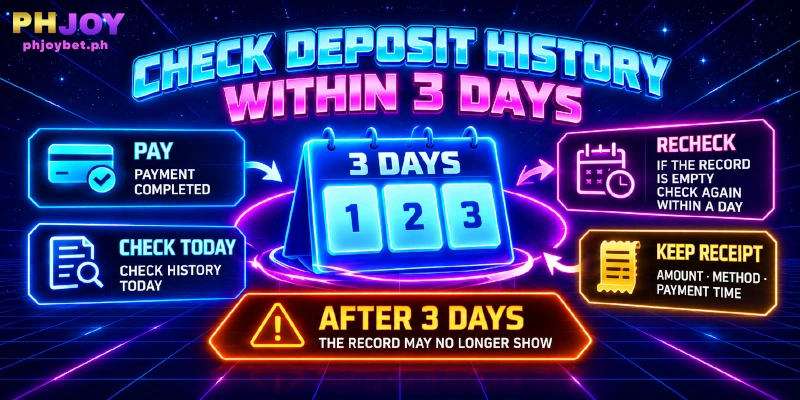
Deposit History shows the last three days of transactions, so check a deposit at PHJOY on the day you pay. Open Deposit History from the deposit page right after the payment popup closes, and again within a day if the first look is empty.
If a payment you completed still has not arrived, follow the deposit not working fixes for your method, then contact customer service through Live Support, choose DEPOSIT AND WITHDRAWAL, and have your wallet or bank receipt and the Deposit History record ready.
After three days the record no longer shows there, so keep the receipt inside your own e-wallet or bank app and note the amount, the method and the time of payment.
FAQ
Three questions stay open after the seven steps: what a deposit at PHJOY costs, which apps can read the QR code, and whether identity documents come into it.
Does a PHJOY Deposit Carry a Fee?
No fee shows on a deposit at PHJOY: the Actual Payment Amount in Payment Details equals the amount you deposit. Your own e-wallet or bank may apply separate charges, so check the terms of each. Compare the amount your wallet asks you to pay with the figure in Payment Details before you confirm.
Can I Scan the QR Code of a PHJOY Deposit With Another App?
Yes, on the QR popups. The GCASHPAY2 popup supports all e-wallets and mobile banking, and the GCashQR popup names Maya, ShopeePay or any bank app.
QR Ph codes work across apps because the national standard behind them is built so that participating banks and e-wallets read the same code. For a bank other than UnionBank, use one of the QR popups, since the Online Banking method redirects to UnionBank only.
Does a PHJOY Deposit Ask for ID Verification?
No. The seven steps of a deposit at PHJOY contain no ID step: you choose a method, a channel and an amount, then pay. The only account-level limits you may meet come from your own wallet, such as GCash’s Basic and Fully Verified levels, which you manage in the wallet app rather than at PHJOY.
Two Decisions Set a PHJOY Deposit: the Method and the Bonus Tick
Every PHJOY deposit follows the same seven steps, so when you cash in at PHJOY, two decisions set the terms: the method fixes your range, from Maya’s floor to GrabPay’s cap, and the bonus tick fixes whether a turnover requirement comes with the money. Settle both before you open the form, and the rest only fills in details.