
PHJOY Withdrawal Needs a GCash or PayMaya Wallet in Your Name
PHJOY withdrawal pays out to a GCash or PayMaya wallet in your name, from ₱100 to ₱20,000 per request and up to 20 requests a day. Two checks apply to every request: your Withdrawer Name must match that wallet, and the amount must fit inside Available Amount, which stays below your balance while bonus money still has a turnover requirement to clear.
PHJOY Withdrawal Starts With a Matching Name, a Linked E-Wallet, and a Transaction Password
Before you withdraw on PHJOY for the first time, you set up three items under My Account in Personal Center: a Withdrawer Name, a linked e-wallet that carries the same name, and a Transaction Password that the form asks for at Submit. My Account also shows a Security Level score and recommends these same three items. An e-wallet is the GCash or PayMaya account that receives your payout.
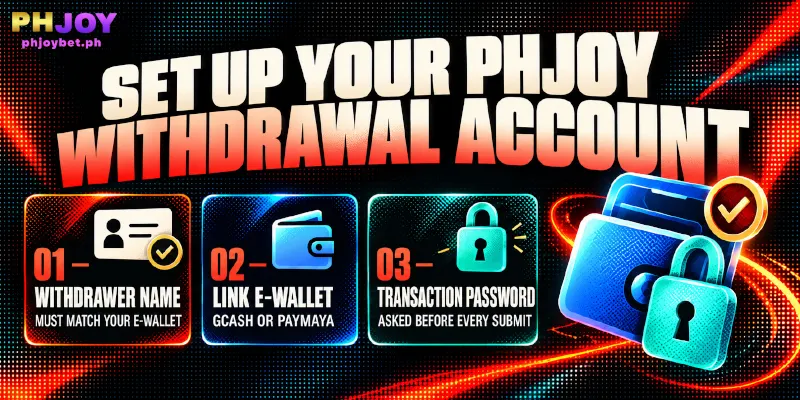
Personal Information: The Withdrawer Name Must Equal the E-Wallet Owner’s Name
Your Withdrawer Name has to match the account name on your e-wallet, otherwise the withdrawal fails. Read the name as your GCash or Maya (formerly PayMaya) app shows the name, and match the spelling, spacing and middle names too. The form has four fields, and only the Withdrawer Name carries the matching rule; fill them in under My Account and select Submit.
| Field | Rule | What the field does for you |
|---|---|---|
| Withdrawer Name | 2 to 25 characters | Must equal the account name on your e-wallet. |
| Nickname | 2 to 25 characters | Length is the only rule the form shows. |
| 10 to 50 characters | The Forgot Password form asks for the email saved here. | |
| Phone Number | Filled in from registration | You only confirm the number from registration. |
Link E-Wallet: GCash or PayMaya, Two E-Wallets at Most
You can link up to two e-wallets for withdrawals at PHJOY, and the form shows 0/2 before you link the first. Name on Card is the payee’s full name, so Name on Card carries the same name as your Withdrawer Name.
- Open My Account and select Link E-wallet.
- Under E-wallet, choose G-Cash or PayMaya.
- Fill in Name on Card (the e-wallet owner’s full name), E-wallet type, and Account Number, copying the details from your e-wallet app.
- Select Submit.
If you took the First Deposit Bonus (the bonus you tick on the deposit page for your first top-up), leave the linked account details unchanged until your first withdrawal is done, because PHJOY confiscates the winnings when those details change before that withdrawal.
Transaction Password: Asked on Every Withdrawal
The withdrawal form asks for your Transaction Password before you select Submit, so set the password before your first withdrawal at PHJOY. Choose a value different from your login password, so that someone who learns the login password still cannot submit a withdrawal. Because the form asks on every request, pick a password you can enter from memory.
- Open My Account and select Transaction Password.
- Enter a New Password.
- Enter the same password under Confirm Password.
- Select Submit.
Central Wallet Shows Your Balance, Available Amount Shows What You Can Withdraw
Once the three items are set, the PHJOY withdrawal form shows two numbers, and you can request up to the Available Amount. Central Wallet is your full balance, bonus money included, while Available Amount is the part you can withdraw now.
Bonus money joins Central Wallet when you claim the bonus, but joins Available Amount only after you clear the turnover requirement, the total you must bet on that bonus (also called a wagering requirement). Turnover requirements differ from bonus to bonus, so the gap between the two numbers depends on which bonuses you have claimed.
Take a PHJOY withdrawal with made-up figures: Central Wallet reads ₱1,500 and Available Amount reads ₱1,000. You can request up to ₱1,000 now, and the other ₱500 joins Available Amount once you clear the turnover requirement behind that money.
A bonus claimed shortly before a planned cash out therefore lifts Central Wallet without lifting what you can request, and the turnover requirement shown with that bonus tells you how much betting closes the gap.
How Much Can One Request Take, and How Many Can You Send a Day?
Whatever Available Amount shows, each PHJOY withdrawal request still runs from ₱100 to ₱20,000, and you can send up to 20 requests a day. The table sets each limit next to what the limit means for the amount you plan to take out.

| Limit | At PHJOY | What the limit means for you |
|---|---|---|
| Minimum per request | ₱100 | Available Amount has to reach ₱100 before you can send a request. |
| Maximum per request | ₱20,000 | You send anything above ₱20,000 as separate requests. |
| Requests per day | 20 | The form counts down the remainder as Remaining Number of Withdrawal Today. |
As an example with an illustrative balance of ₱50,000, a PHJOY cash out takes at least three requests of ₱20,000, ₱20,000 and ₱10,000, and only when Available Amount covers the full ₱50,000. Those three requests use 3 of your 20 daily requests, so at this size the ₱20,000 cap, not the daily count, sets how many requests you send.
How to Withdraw on PHJOY in Eight Steps, From Menu to Submit
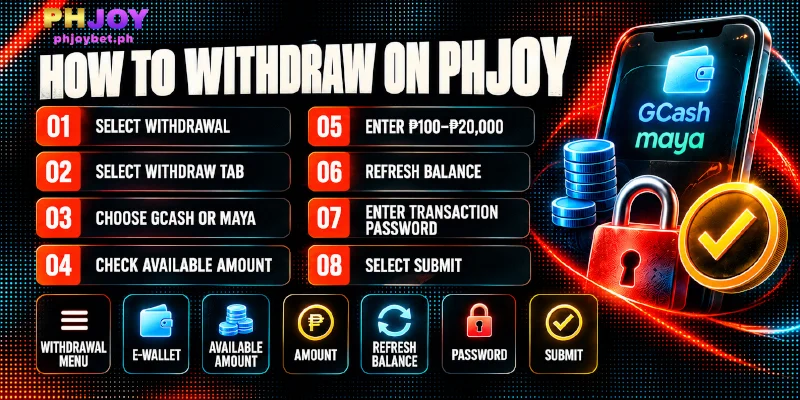
With the name, the balance and the limits in hand, you send a PHJOY withdrawal in eight steps, from the Withdrawal menu to Submit. Log in first, then follow the steps in order.
- Select Withdrawal in the sidebar, or the withdrawal icon in the header. The Withdrawal page opens.
- Select the Withdraw tab.
- Choose the e-wallet that receives the payout, GCash or Maya (the PayMaya option you linked), or use Add wallet if none appears. Use the edit icon only to switch to a different e-wallet, and if your first deposit carried a bonus, wait until your first withdrawal is done before you change anything. The chosen e-wallet must carry the name saved as your Withdrawer Name.
- Compare Central Wallet with Available Amount, and work from Available Amount.
- Choose a preset amount or type a figure from 100 to 20,000. Your figure must not exceed Available Amount, and you must still have requests left today.
- Select Refresh Balance to update the balances on the form.
- Enter your Transaction Password. If you have not set one, go back to My Account first.
- Select Submit.
After you select Submit, the Recent Withdrawal panel lists your recent withdrawals at PHJOY, and the e-wallet you chose in step 3 receives the payout. If a withdrawal problem comes up, open Live Support in the sidebar, enter your username, and choose the DEPOSIT AND WITHDRAWAL department. Describe the amount and the time you submitted the request.
FAQ
The answers below stay within what the withdrawal form and My Account show.
Can I Withdraw on PHJOY to a Bank Account or GrabPay?
No. You can withdraw at PHJOY only to a linked GCash or PayMaya e-wallet, and UnionBank Online Banking and GrabPay work for deposits only.
Do I Need to Upload ID Documents to Withdraw on PHJOY?
No. The setup and the eight withdrawal steps include no document upload. The identity step is matching your Withdrawer Name to your e-wallet’s name.
Can I Withdraw on PHJOY at Any Hour?
Yes. PHJOY accepts requests 24 hours a day, so you can submit one at any hour.
Set Up Once, Then Check Available Amount Before Every Request
A PHJOY withdrawal takes two kinds of care: a setup you do once, where the name on your account and your wallet must agree, and a check you repeat on every request, where Available Amount and the requests left today set what you can send. Get the first right and each later withdrawal at PHJOY comes down to a glance at the form.